I read an article in the past about an interview for programmers. They give the potential employees this problem and ask them to write a program.
“Write a program that prints the numbers from 1 to 100. But for multiples of three print “Fizz” instead of the number and for the multiples of five print “Buzz”. For numbers which are multiples of both three and five print “FizzBuzz”.”
What is interesting in this Java code is the use of a for loop to count from 1 to 100 and use of if/else statements to decide whether to output the number or one of fizz, buzz or fizzbuzz.
This program introduces System.out.print(); This method is similar to println(), but it doesn’t terminate line of output. Whatever is output next appears on the same line.
The example also shows another example for comments. Anything is a comment in Java between characters */ and characters */ for any number of line. When one of tehse comments begins with /**, then it is additionally a “doc comment”, which means its contents are used by the javadoc program that automatically generate API documentation from Java source code.
The for and ifelse statements may require a bit of explanation for those have not encountered them before. A for statement sets up a loop, so that some code can be executed multiple times. The for keyword is followed by three Java expression that specify the parameters of the loop. They syntax is:
for (initialize; test; update)
body
The initialize expression does any initialization. It is run once, before the loops start. Usually, it sets an initial value for a “loop counter” variable. Usually the variable only used in the loop, so it also declare the variable.
The test expression check whether the loop should continue. It is evaluated before each execution of the loop body. If it evaluates to true, the loop is executed. When false, the statements in body loop is not executed and loop terminates.
The update expression evaluated at the end of each iteration of the loop; it does anything necessary to set up the loop for next iteration. Usually it simple increments/decrements the “loop counter” variable.
Finally, body is the Java code that is run each time through the loop. It can be a single statements or a whole block of Java code, enclosed by curly braces {}.
Therefore, you can see for loop in this example counts from 1 to 100.
The if/else statement is much simple than that the fo statement. Syntax:
if (expression)
statement1
else
statement2
When Java encounters an if statement, it evaluates the expression. If the expression is true, then statement1 is executed. Otherwise, statement2 is executed. There is no looping involved. The else and statement2 clause are optional. If they are omitted and expression evaluate to false, the if statement does nothing. The statements can be a single statements or a whole block of Java code, contained within curly braces.
if/else statement can contain other statements, including other if/else statement. This sort of nested if/else logic is a commonly used idiom that you will quickly become accustomed to. You may also noticed that I use a compact coding style that keeps everything on a single line wherever possible.
if (expression) statement
I prefer to use more highly structured, less compact style in my own code.
I have my other way of solving this problem. I used this algorithm when I solved it in C++, and I made the similar structure here in Java.
Since the System.out.print() statement doesn’t apply line break, when both condition are true, the output in console will be FizzBuzz. See I don’t use else statement here. I also use not equal statement at first part, reversing the code but still do the same thing overall. :)
Showing posts with label my java tutorial. Show all posts
Showing posts with label my java tutorial. Show all posts
Friday, November 16, 2012

My Java Tutorial 3: What is your type?
In almost every program, you will use variables. Variables store information in memory and make available to the programmer. It can be in term for number, string, character or other data types. I will explain about variable, syntax, data types, and assignment statement. This will be quite a reading, but believe me, to be a programmer is actually to read. The thousand-line’s codes... I mean books and JavaDoc.
First, let’s look at this simple program. It does nothing much other than declaring and initializing the variables with variable name describing the data type.
A variable is a symbol that represents something. It usually have descriptive variable name to describe what it store. Right now, it is small program so you know and don’t have to look at the definition. But when the code are thousands lines, you may start taking Panadol. Therefore, it is a good practice to name variables close to what it really does. It also useful to include a comment with each variable declaration.
Variable name have some rules in it. Although you can name your son Johnny English and doubt the filmmaker going to file a report on you, Java compiler will, because there is a space in between.
1. It must begin with a letter or underscore. (Underscore refers to character ‘_’)
2. It can’t start with number.
3. It must be consist of entirely letters, digits and underscores.
4. No space or special characters(E.g.:!@#%^&*<>?/\|[]{}~`) are allowed in identifiers (variable name). Except @, and in JAVA: dollar sign $.
5. Java is case-sensitive. So helloWorld and HELLOWOrld and HELLOWORLD are all distinct name.
6. Can’t be a reserved word: abstract, assert, Boolean, break, byte, case, catch, char, class, const, continue, default, do, double, else, extends, final, finally, float, for, goto, if, implements, import, instanceof, int, interface, long, native, new, package, private, protected, public, return, short, static, strictfp, super, switch. tldr; Just don’t use it when your IDE make it colorful in, dangerous way, like red or purple. Unless you customize your IDE coloring.
Some of allowed variable are: a, A, xXx, rate, x1, i_am_a_very_long_long_name, HelloWorld, agent007, hadahsneiu2i3_4fs. Yes, the last name is allowed to, though I doubt you want that kind of name in your adorable program.
Do you know camel, that cute thing in the desert? There is a convention for naming the variable referred to as camel case. In this program whatIsYourType, aSingleLetter is a camel case variable name. When the name is made up of several words, capitalize each word except the first.
Another convention is to use all capital letters for constant, underscores to separate words.
There are 3 musketeers, I mean, datatypes: primitive, reference and constant data types.
1. You mostly deal with primitive data types in this beginning program. It is simple data types also known as built-in types. Four common integer type: byte, short, int, long. There store similar value, but within different range, but usually we use int. There are times the numbers are way big you will be going to another data type. For decimal values, two of them are float and double where double is usually the choice of programmer. Then there are boolean that only have 2 values: true and false. Like a lamp, turn on and off. Last but not least the single char-arcter that hold single Unicode character. (Java can hold Unicode character, but for the sake of illiterate others, don’t use Chinese/Arabic/Japanese/Koreans/whatever as your variable name)
2. Reference data types refer to as object. Java is an object-oriented programming language, so you will be using this in future. It can be class, array or interface. E.g: String. Different from data types above that is similar in C++ programming, String is an object, a special data types that store text. No matter how long you write it as long as your computer memory can hold it or the maximum value.
3. Constant data types is declared using keyword final. When declared in a class, it will use keyword static.
Declaration is to make a variable of certain data type. So, to make an integer called number, I would do this: int number; Initalization / assignment statement is to set initial value to the number. To assign number a value of 3, do something like this: number = 3; In the previous program, I declare a new variable AND give it initial value of 3. Assignment statements take the form variable = expression; where expression refers to or computes a data value.
Friday, November 2, 2012
My Java Tutorial 2 : "Compile!
Compile!
We must first compile the program before we can run it. Save the program with same name as the class. You MUST save the same name as the class, in this case, Hello.java. So it will work properly. There are 2 ways, using command prompt or JDK directly, or using user-friendly interface. I am using BlueJ presently, so I’ll show that one. There is a right term for this program… but I can’t remember now.
1. Compile using command prompt
Open the command prompt. First, set the path to be able to use compiler. There is a way so we don’t need to do this every time, but I can’t remember how. Set the path to where you save it/install your JDK, usually just as where you can see below.

Test if you have set the path by entering this. If succeeded, there will be many lines of… you will see.

But before you can compile, you should change to the directory you have saved the program. To change directory, enter cd “name of directory”. To change back up, use cd.. To change to top tree of file directory, use cd/. To change drive, use D: to change to drive D. Because we can be lazy, I used batch file and just click it. Hehe. This is my java batch file, java_1.7.bat .
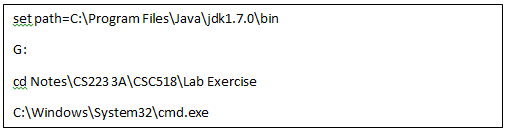
Read more about command prompt commands should the need arise.
Run the following command to compile.

If set up properly, javac will run for a short while and produces file named Hello.class.
To run the program:

This command should produce output of Hello World! In your command prompt. Java is java interpreter program, it runs the Virtual Machine. This is in regard of Java program saved in form of binary. It need Java Virtual Machine to run. Therefore, it can be run in any system having this JVM. While in any other programming language, it required to be compiled and run according to the system.
2. Compile using BlueJ
BlueJ is something like Borland C++. Make life easy, but have way too much file in it. I usually use DevC++ to compile C++. But for Java, it started to feel a lot easier to compile using this… BlueJ. I still didn’t remember the right term. Oh well.
First, download and install BlueJ. Then, you should have need to set path first when you first start the program. Press at the menu Project >> New Project.

Set your directory where you want to save it. Then put in the folder name box your project name. For this case, I put Hello World.

Then press Create. It will create a folder named Hello World with the icon penguin on it, if you view using BlueJ. I’m serious.
Oh, then press new class, enter the name of class and press OK (use Hello). You can see the class Hello appears as a box there.

 If you double-click, you should see various things in it, a standard way of writing a class. But you don’t need them all right now. You may read them, but I’ll just clear em out… and enter my program in. Stand-alone program for now doesn’t use whatever you read there much yet. That documentation is good practice though.

Click Compile button to compile. Close or just switch to main window of BlueJ. Right-click Hello class and press the void main (String [] args). And just press enter again.

A terminal window will show up, showing how it would appear in command prompt screen.

Because this is easier in my opinion, I use IDE instead of command prompt now. Oh, I finally remember the term. Integrated Development Environment, IDE.
We must first compile the program before we can run it. Save the program with same name as the class. You MUST save the same name as the class, in this case, Hello.java. So it will work properly. There are 2 ways, using command prompt or JDK directly, or using user-friendly interface. I am using BlueJ presently, so I’ll show that one. There is a right term for this program… but I can’t remember now.
1. Compile using command prompt
Open the command prompt. First, set the path to be able to use compiler. There is a way so we don’t need to do this every time, but I can’t remember how. Set the path to where you save it/install your JDK, usually just as where you can see below.
Test if you have set the path by entering this. If succeeded, there will be many lines of… you will see.
But before you can compile, you should change to the directory you have saved the program. To change directory, enter cd “name of directory”. To change back up, use cd.. To change to top tree of file directory, use cd/. To change drive, use D: to change to drive D. Because we can be lazy, I used batch file and just click it. Hehe. This is my java batch file, java_1.7.bat .
Read more about command prompt commands should the need arise.
Run the following command to compile.
If set up properly, javac will run for a short while and produces file named Hello.class.
To run the program:
This command should produce output of Hello World! In your command prompt. Java is java interpreter program, it runs the Virtual Machine. This is in regard of Java program saved in form of binary. It need Java Virtual Machine to run. Therefore, it can be run in any system having this JVM. While in any other programming language, it required to be compiled and run according to the system.
2. Compile using BlueJ
BlueJ is something like Borland C++. Make life easy, but have way too much file in it. I usually use DevC++ to compile C++. But for Java, it started to feel a lot easier to compile using this… BlueJ. I still didn’t remember the right term. Oh well.
First, download and install BlueJ. Then, you should have need to set path first when you first start the program. Press at the menu Project >> New Project.
Set your directory where you want to save it. Then put in the folder name box your project name. For this case, I put Hello World.

Then press Create. It will create a folder named Hello World with the icon penguin on it, if you view using BlueJ. I’m serious.
Oh, then press new class, enter the name of class and press OK (use Hello). You can see the class Hello appears as a box there.
 If you double-click, you should see various things in it, a standard way of writing a class. But you don’t need them all right now. You may read them, but I’ll just clear em out… and enter my program in. Stand-alone program for now doesn’t use whatever you read there much yet. That documentation is good practice though.
 Click Compile button to compile. Close or just switch to main window of BlueJ. Right-click Hello class and press the void main (String [] args). And just press enter again.
A terminal window will show up, showing how it would appear in command prompt screen.

Because this is easier in my opinion, I use IDE instead of command prompt now. Oh, I finally remember the term. Integrated Development Environment, IDE.
My Java Tutorial 1 : “First program to write is the same for all language.”
My Java Tutorial
Bismillilah. In the Past, my friend once said, “Perhaps you could teach me programming too.” Despite being a Financial Degree student, he had interest to other fields such as business and computers, including programming. To my surprise, he could actually repair laptop where I can’t, even though I was a Diploma in Computer Science student. So in that thought in mind, I want to try it; to teach others programming, starting with Java. Even though there are thousands or million even references in Internets and Books, I still want to try this with some help. I started with a nice book “Java Examples in A Nutshell: A Tutorial Companion to Java in a Nutshell” by David Flanagan. Though it is supposed to be used in conjunction with other book, but it is a practical way of learning through examples.
Java is an object-oriented language, but at basic we won’t be covering this yet. Let’s start writing Java programs.
Preparation of using Java includes downloading the Java Development Kit (JDK). The latest JDK during this time of writing is jdk1.7.0. You will be using command prompt to compile it. But, you may also use user-friendly compiler such as BlueJ.
My Java Tutorial 1: “First program to write is the same for all language.”
This referred to “Hello World” program.


Bismillilah. In the Past, my friend once said, “Perhaps you could teach me programming too.” Despite being a Financial Degree student, he had interest to other fields such as business and computers, including programming. To my surprise, he could actually repair laptop where I can’t, even though I was a Diploma in Computer Science student. So in that thought in mind, I want to try it; to teach others programming, starting with Java. Even though there are thousands or million even references in Internets and Books, I still want to try this with some help. I started with a nice book “Java Examples in A Nutshell: A Tutorial Companion to Java in a Nutshell” by David Flanagan. Though it is supposed to be used in conjunction with other book, but it is a practical way of learning through examples.
Java is an object-oriented language, but at basic we won’t be covering this yet. Let’s start writing Java programs.
Preparation of using Java includes downloading the Java Development Kit (JDK). The latest JDK during this time of writing is jdk1.7.0. You will be using command prompt to compile it. But, you may also use user-friendly compiler such as BlueJ.
My Java Tutorial 1: “First program to write is the same for all language.”
This referred to “Hello World” program.
Explanation:
For this program, it is a public (means it can be used by anyone) class named Hello.
All programs will have main() method. You should memorize this line:
Every
standalone Java program you ever write will contain this line.
System.
out.println() method sends a line of output to the screen. It usually in form
of string, denoted by “”.
// is the
use of comments. This is a C++ style of one-line comments, anything between it
and end of line will be ignored by compiler. Comments are important to help
learning about programming, and to look back at the program in the future.
Maybe you can’t see why now because it is just few lines of programs, but when
it comes to thousands of codes, you will appreciate it. =)
Subscribe to:
Posts (Atom)